Create and Edit PowerPoint Presentations with the New JavaScript PowerPoint Library
TL;DR: Need to generate PowerPoint reports directly from application data? The Syncfusion JavaScript PowerPoint Library (Preview) lets you create, open, edit, and save PPTX presentations in browser and Node.js applications. Build slides with text, images, tables, and charts without requiring Microsoft PowerPoint.
Introduction
What if you could create and manage PowerPoint presentations directly from your JavaScript application?
From generating business reports and customer presentations to updating existing slide decks, automating presentation workflows can make application development more flexible and efficient.
The Syncfusion® JavaScript PowerPoint Library (Preview), introduced in Essential Studio® 2026 Volume 3, brings these capabilities to JavaScript and TypeScript developers. It provides APIs to create, open, edit, and save PowerPoint (.pptx) presentations programmatically.
Whether you’re working in a browser or a Node.js environment, you can handle presentation files directly from your application without requiring Microsoft PowerPoint to be installed.
In this blog, we’ll explore the library’s key features and learn how to create, save, and update PowerPoint presentations using JavaScript.
Key features of the JavaScript PowerPoint Library
The JavaScript PowerPoint Library provides APIs for working with presentation content and structure. Here are its key capabilities.
-
Presentation and slide management: Create presentations, open existing PPTX files, add or remove slides, and organize presentation content.
-
Layouts and master slides: Work with slide layouts and master slides to maintain consistent presentation structure, positioning, backgrounds, and branding.
-
Text and formatting: Add and edit text, paragraphs, bullets, numbering, hyperlinks, and text formatting.
-
Shapes and placeholders: Insert and customize shapes, text boxes, and placeholders to organize slide content.
Adding shapes to PowerPoint slides -
Tables and charts: Create and modify tables and charts to present structured information and visualize business data.
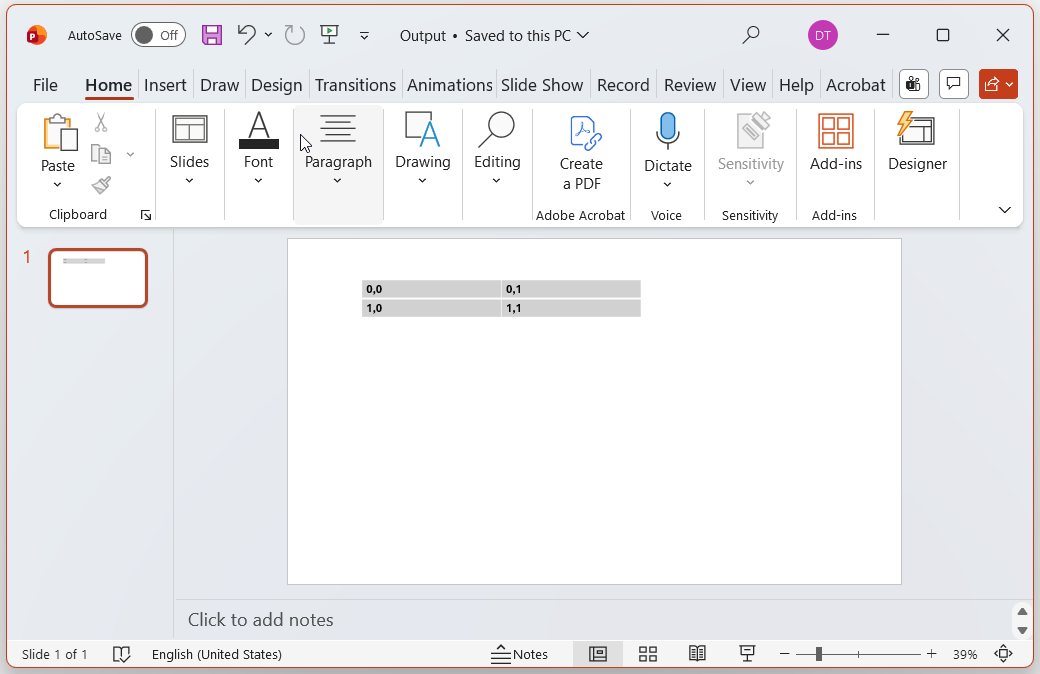
Adding tables to the PowerPoint slides -
Images: Insert, replace, position, and remove images in slides.
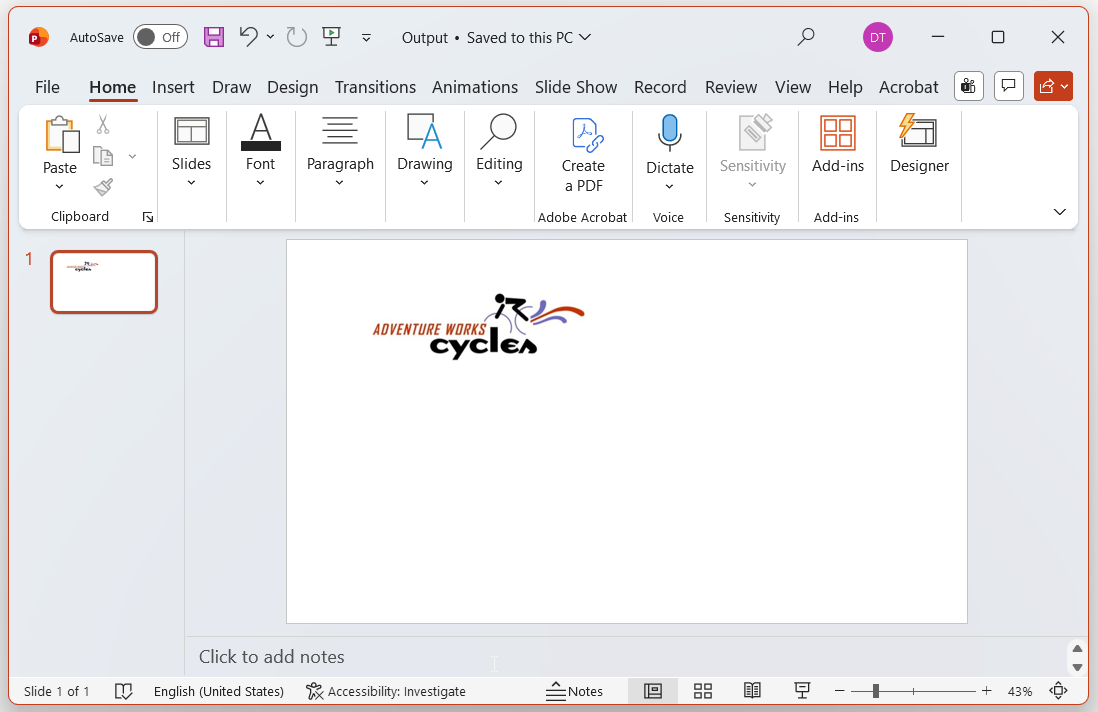
Adding images to PowerPoint slides -
Sections and speaker notes: Organize slides into sections and create or edit speaker notes.
The library currently supports the .pptx format. It can be used in JavaScript, TypeScript, Node.js, Angular, React, and Vue applications.
For a complete list of supported features, refer to the JavaScript PowerPoint Library documentation.

Explore Now
Getting started with the JavaScript PowerPoint Library
Let’s create a simple PowerPoint presentation with a title slide using JavaScript.
Prerequisites
Before getting started, make sure you have:
- Node.js 18 or later.
- npm 9 or later.
- A modern web browser for browser-based development.
- A code editor such as Visual Studio Code.
You can check the installed versions using:
node --version
npm --version
Step 1: Install the package
Install the Syncfusion JavaScript PowerPoint Library from npm:
npm install @syncfusion/ej2-pptx --save
Step 2: Create a PowerPoint presentation
Import Presentation and SlideLayoutType from the package. Use Presentation.create() to create a new presentation and add a blank slide.
import { Presentation, SlideLayoutType } from '@syncfusion/ej2-pptx';
const pptxDoc = Presentation.create();
const firstSlide = pptxDoc.slides.add({
layout: SlideLayoutType.Blank
});
const textShape = firstSlide.shapes.addTextBox({
bounds: {
x: 100,
y: 75,
width: 756,
height: 200
}
});
const paragraph = textShape.textBody.addParagraph();
const textPart = paragraph.addTextPart('');
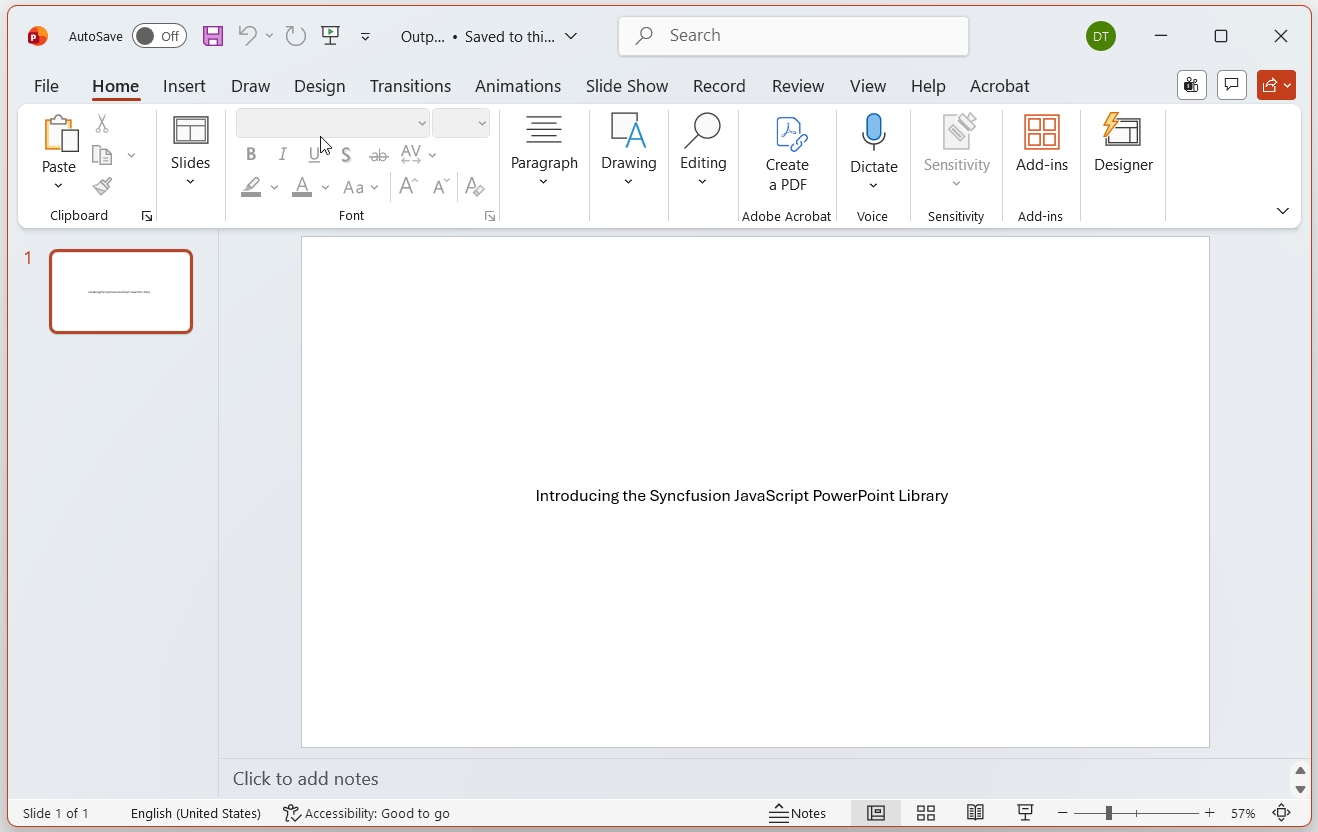
textPart.text = 'Introducing the Syncfusion JavaScript PowerPoint Library';
The code creates a presentation, adds a blank slide, and inserts a text box containing the presentation title.
You can extend this example by adding more slides and supported elements, such as images, shapes, tables, and charts.
Step 3: Save the presentation in a browser
Once the presentation is ready, save it as a PPTX file:
await pptxDoc.save('Output.pptx');
In a browser environment, this triggers a download of the generated PowerPoint file. Users can open the downloaded presentation in Microsoft PowerPoint or another compatible application.
Read Now
Generate PowerPoint presentations in Node.js
You can also generate PowerPoint files on the server using Node.js. This is useful when a backend application needs to create reports automatically, generate customer-specific presentations, or provide downloadable files through an API.
The saving process differs slightly from browser-based development. In Node.js, save() returns the presentation data as a Uint8Array. You can write these bytes to the file system using Node.js file-system APIs.
For example:
const express = require('express');
const { Presentation, HorizontalAlignmentType } = require('@syncfusion/ej2-pptx');
const app = express();
const PORT = 3000;
app.use(express.static('public'));
app.get('/generate-powerpoint', async (req, res) => {
const pptxDoc = Presentation.create();
const slide = pptxDoc.slides.add();
const titleShape = slide.shapes.addTextBox({
bounds: {
x: 55,
y: 25,
width: 850,
height: 72
}
});
const paragraph = titleShape.textBody.addParagraph();
paragraph.horizontalAlignment = HorizontalAlignmentType.Center;
const textPart = paragraph.addTextPart('Hello World!!!');
textPart.font.fontName = 'Calibri';
textPart.font.bold = true;
textPart.font.fontSize = 36;
const pptxBytes = await pptxDoc.save();
res.setHeader('Content-Type', 'application/vnd.openxmlformats-officedocument.presentationml.presentation');
res.setHeader('Content-Disposition', 'attachment; filename=WeeklySalesReport.pptx');
res.send(Buffer.from(pptxBytes));
});
app.listen(PORT, () => {
console.log(`Server running at http://localhost:${PORT}`);
});
Here, the application creates a presentation, adds a title slide, and saves the generated PPTX data as WeeklySalesReport.pptx.
You can use the same approach in a backend reporting service and return the generated file to a browser or another application.
For more details, see Getting Started with JavaScript PowerPoint in Node.js.
Try Now
Open and edit existing PowerPoint presentations
Creating presentations from scratch is only one part of presentation automation. Business applications often use existing PowerPoint templates to maintain consistent branding and formatting.
The JavaScript PowerPoint Library supports opening existing PPTX files, modifying their content, and saving the changes.
The Presentation.open() method accepts presentation data as a Base64-encoded string or a Uint8Array.
For example, the following Node.js code opens an existing presentation, adds a slide, and saves the updated file.
const fs = require('fs');
const { Presentation, SlideLayoutType } = require('@syncfusion/ej2-pptx');
async function updatePresentation() {
const presentationData = new Uint8Array(
fs.readFileSync('SalesTemplate.pptx')
);
const pptxDoc = await Presentation.open(presentationData);
const newSlide = pptxDoc.slides.add({
layout: SlideLayoutType.Blank
});
const textShape = newSlide.shapes.addTextBox({
bounds: {
x: 100,
y: 75,
width: 756,
height: 200
}
});
const paragraph = textShape.textBody.addParagraph();
const textPart = paragraph.addTextPart('');
textPart.text = 'Updated Sales Performance';
const updatedData = await pptxDoc.save();
fs.writeFileSync('UpdatedSalesReport.pptx', updatedData);
}
updatePresentation();
In this example, the application reads an existing PowerPoint file, opens it, adds a new slide with a title, and saves the updated presentation.
You can extend this workflow to update supported presentation elements, including text, shapes, tables, images, and charts.
This is particularly useful when applications need to generate reports from predefined templates instead of creating every presentation from scratch.
For more information, see Loading and Saving PowerPoint Presentations.
What’s next: Upcoming features in the JavaScript PowerPoint Library
The current release provides the core capabilities needed to create, open, edit, and save PowerPoint presentations. The product roadmap also identifies additional enhancements planned for future releases.
These planned improvements are grouped into the following areas.
Presentation handling
Planned presentation-management enhancements include:
- Slide cloning and merging operations.
- Presentation sections for organizing slides.
- PowerPoint-to-PDF conversion.
- Support for additional formats, including PPTM, POTX, and POTM.
Visuals and content enhancements
Future content-related improvements include:
- Animation and transition effects.
- Find and replace.
- Headers and footers.
- SmartArt support.
- Macros.
- OLE objects.
Review and collaboration
The roadmap includes comments support to help users review and collaborate on presentation content.
Data protection and security
Planned security enhancements include:
- Encryption and decryption.
- Write protection for presentation documents.
These enhancements are intended to expand the library’s presentation management, conversion, collaboration, and security capabilities. They represent planned roadmap items and should not be considered available in the current release.
For the latest feature availability, refer to the official release notes.
Try It Free
Conclusion
Generating PowerPoint presentations doesn’t have to involve manually creating slides or relying on desktop Office automation. With the Syncfusion JavaScript PowerPoint Library (Preview), developers can create presentations from application data, work with existing PPTX files, and generate reports in browser and Node.js applications.
From adding slides and text to working with tables, charts, images, layouts, and master slides, the library provides a foundation for building presentation-generation workflows with JavaScript.
The planned roadmap enhancements will extend these capabilities with features such as slide merging, PDF conversion, animations, collaboration, and document protection.
Ready to explore presentation automation in JavaScript? Check out the JavaScript PowerPoint Library documentation and try it in your application.
You can also explore the Syncfusion Document SDKs and download a free 30-day trial to get started.
Frequently Asked Questions
Can the JavaScript PowerPoint Library run in both browser and Node.js applications?
Yes. The library supports browser and Node.js environments. You can generate presentations in the browser and download them directly or create presentations on the server and save the returned presentation data using Node.js file-system APIs.
Can I open and edit an existing PowerPoint presentation?
Yes. Use Presentation.open() to load an existing PPTX file as a Base64-encoded string or Uint8Array. You can then modify supported presentation elements and save the updated file.
Can I open password-protected PowerPoint presentations?
Yes. The library supports opening password-protected PPTX presentations when valid credentials are provided.
Does the library require Microsoft PowerPoint to be installed?
No. The JavaScript PowerPoint Library processes PPTX files programmatically without requiring Microsoft PowerPoint or Microsoft Office Interop to be installed.
Can I use the library with React, Angular, and Vue?
Yes. The library can be integrated into JavaScript and TypeScript applications, including React, Angular, and Vue projects. It also supports Node.js applications.
PakarPBN
A Private Blog Network (PBN) is a collection of websites that are controlled by a single individual or organization and used primarily to build backlinks to a “money site” in order to influence its ranking in search engines such as Google. The core idea behind a PBN is based on the importance of backlinks in Google’s ranking algorithm. Since Google views backlinks as signals of authority and trust, some website owners attempt to artificially create these signals through a controlled network of sites.
In a typical PBN setup, the owner acquires expired or aged domains that already have existing authority, backlinks, and history. These domains are rebuilt with new content and hosted separately, often using different IP addresses, hosting providers, themes, and ownership details to make them appear unrelated. Within the content published on these sites, links are strategically placed that point to the main website the owner wants to rank higher. By doing this, the owner attempts to pass link equity (also known as “link juice”) from the PBN sites to the target website.
The purpose of a PBN is to give the impression that the target website is naturally earning links from multiple independent sources. If done effectively, this can temporarily improve keyword rankings, increase organic visibility, and drive more traffic from search results.
Streaming Film
Nonton Film gratis
Jasa Backlink
Download Anime Batch